STUDENT GUIDE · HUGGING FACE SPACES
How to Start
Turn the course demo into your own AI mini app
Your finish line: a public Space under your own account that shows what your AI app does. Submit its Space link so your instructor can open and try your work quickly.
You can follow the basic route entirely in your browser. No Git commands are needed.
The seven steps
Create your Hugging Face account
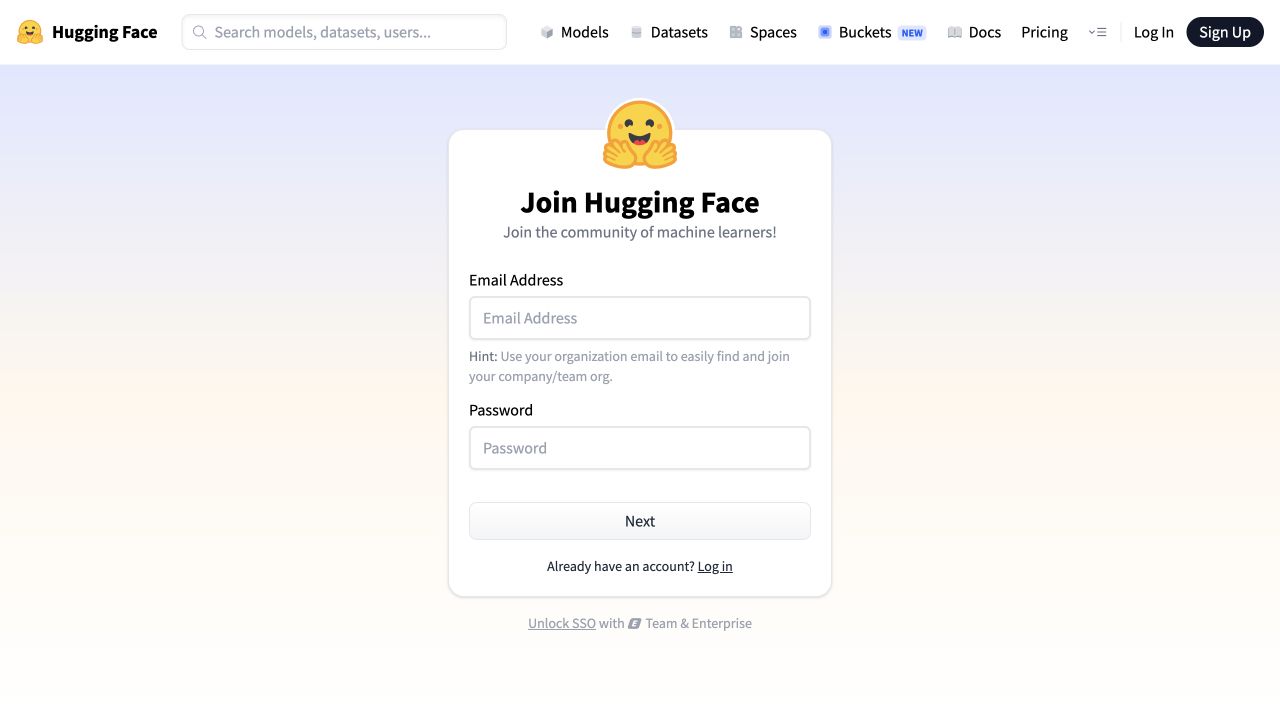
Open https://huggingface.co/join. Enter an email address you check often. Your Gmail address, or the email you use for GitHub, is fine.
Create a password, click Next, and complete the account steps shown. Sign in when you are done.
 123
123Explore the starter demo
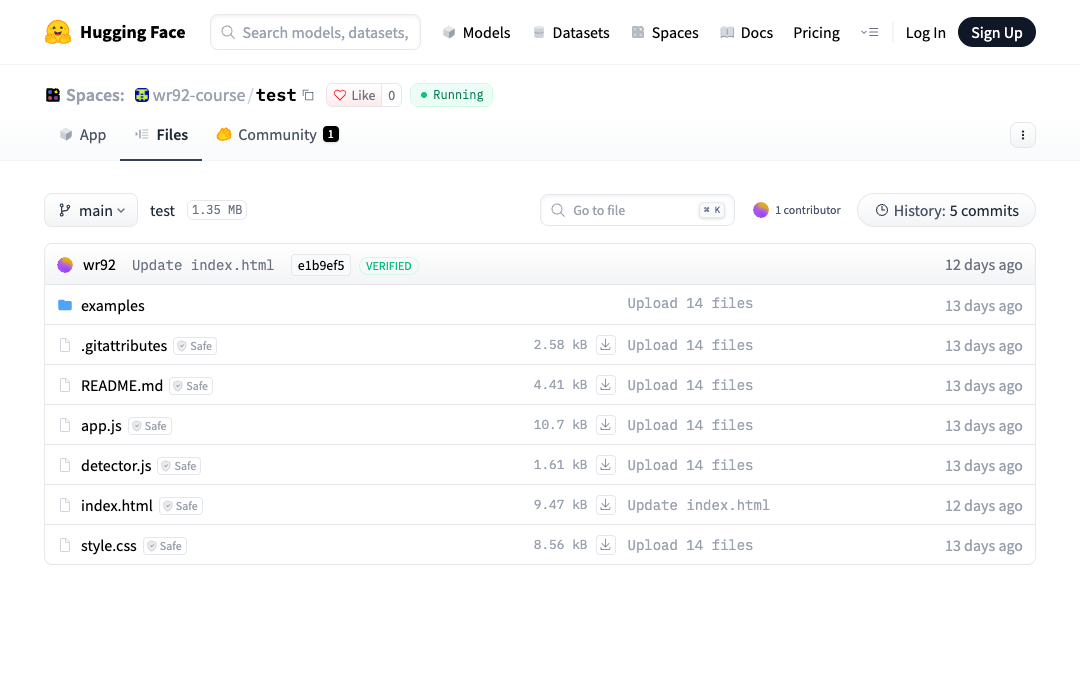
Open https://huggingface.co/spaces/wr92-course/test. In App, choose an example image and try Run AI Detection. The first run may take longer while the model downloads.
Open Files to see the files you will receive in your own copy. You are looking at a working example, not a blank project.
 1
1Duplicate it into your account
On the starter Space, open the three-dot menu at the top right and choose Duplicate this Space.
Set Owner to your own account and give the Space a clear name. Set Visibility to Public so your instructor can open it. The duplicate form starts with Private selected.
Click Duplicate Space. The complete starter project is copied for you; you do not need to paste each code file by hand.
 12
12Make a first edit in your copy
Open your new Space. Select Files, open index.html, and use Edit to change the visible title and short introduction to describe your idea.
Save with a short commit message using Commit changes to main. Then return to App and check that your new text appears.
To add a new file or upload a replacement, use Files → Add file. Save the change with a commit.
 12
12Build your AI mini app
You may keep improving object detection or change the template into another AI application. Give visitors a clear title, a short explanation, an obvious input, and a result they can understand.
Edit the relevant files below. Keep the README.md configuration lines sdk: static and app_file: index.html while using this browser-based route.
This Static Space runs HTML, CSS, and browser JavaScript. Uploading a Python file alone will not run a Python server. A server-based app needs a different Space type and may require a paid plan; check with your instructor before taking that route.
Never place an API key or access token in public HTML or JavaScript files.
Help your instructor understand it fast
Make the App page answer these questions in the first few seconds: What does it do? What should I try? What result should I expect?
Update README.md with a brief project summary: purpose, input and output, AI model or service, what you changed from the starter, and one test or limitation.
Test and submit
Return to App and wait for the Space to finish updating. Try at least one real input from beginning to end and check the output. If a model loads for the first time, allow extra time.
Open your Space link in a private browser window to check that other people can view it. If it shows 404, check Settings → Visibility and make it Public.
Submit the Space page URL, not the embedded .hf.space address, plus two sentences saying what your app does and what you changed.
Which file should I edit?
index.html | Page structure, visible title, instructions and input/output areas |
|---|---|
style.css | Colours, spacing and layout |
app.js | Buttons, inputs and result display |
detector.js | The starter's object-detection model call; adapt or replace for a new task |
README.md | Space title/configuration and the summary your instructor can scan |
Before you submit
- My Space is Public and opens from a private browser window.
- The App page explains my project and a visitor can try it.
- At least one input produces a useful result.
- README.md says what I changed and names the AI model or service.
- I submitted the Hugging Face Space page URL and a two-sentence summary.
If you get stuck
Check Settings → Visibility. A Private Space is only visible to its owner.
Check that the edit was committed, then refresh App after the Space updates.
Try a known example, allow first-time model download, and check that your model can run in the browser.
Ask your instructor about a Gradio or Docker Space and check current account requirements before changing SDK.